Graham Mayor
... helping to ease the lives of Microsoft Word users.
 |
 |
 |
Many people access the material from this web site daily. Most just take what they want and run. That's OK, provided they are not selling on the material as their own; however if your productivity gains from the material you have used, a donation from the money you have saved would help to ensure the continued availability of this resource. Click the appropriate button above to access PayPal.
Problems opening Word 2007/2010 format documents in Word 2002/3
When Microsoft introduced the controversial new version 2007 of its Word processor, it adopted a different file format based on XML technology. To maintain compatibility with earlier versions, a compatibility pack was produced which allows older versions of Word to open and save documents in the new XML 'docx' format.
This converter does not provide those earlier versions with the full range of compatibility for new features introduced in Word 2007 and so some users have noted an apparent problem when trying to open 'docx' format documents based on Word 2007/2010 templates, despite having the converter installed.
The document retains a reference to the template upon which it was based and it is this reference that causes the problems. The converter cannot handle the reference to Word 2007/2010 DOTX or DOTM format templates. Documents based on the normal template will cause automatic substitution of the local normal template and DOT format document templates should not be a problem.
When presented with the Word 2007/2010 template reference, the converter either cannot identify the format of the document and inserts garbage, or it does recognize that it is a Word 2007/2010 document, but shows the user a dialog box containing garbage.
In the case of the former, check the Confirm conversion at open option in Tools > Options > General.
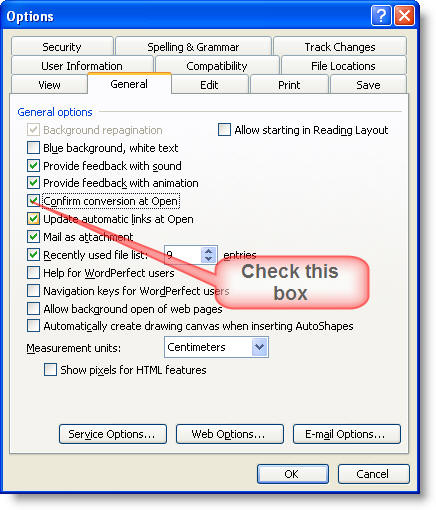
Then when you attempt to open the file again you will be asked to choose the converter. Select Word 2007 Document and click OK.
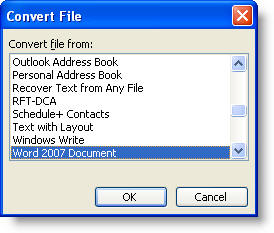
If Word recognised the document type or you indicated the document type in the above dialog, Word will display the following dialog box showing garbage in the preview window that none of the text encoding options will display as readable text.
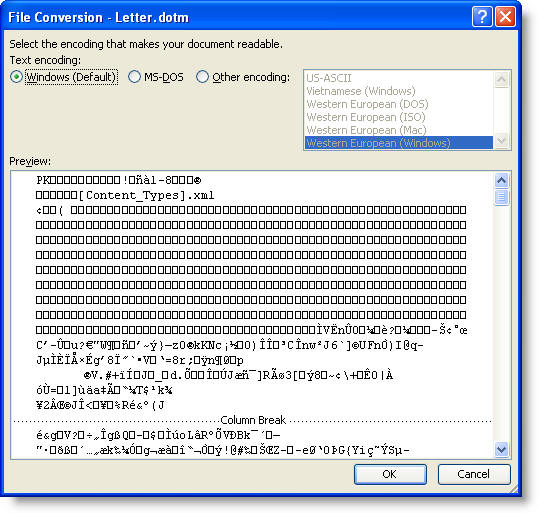
Simply click OK or Cancel - it doesn't matter which, but what happens next will depend on the choice. If you click OK, you will see the following dialog: Note the reference to TEMPLATE.
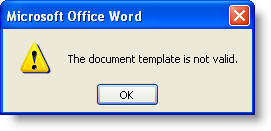
If you OK that dialog or click Cancel from the previous dialog you will see another message box:

OK this dialog and the document should open normally, albeit the layout may have changed for the reasons indicated.
Having opened the document, to avoid the dialog on opening a document created from a Word 2007 template in future, open the tools > templates and add-ins dialog
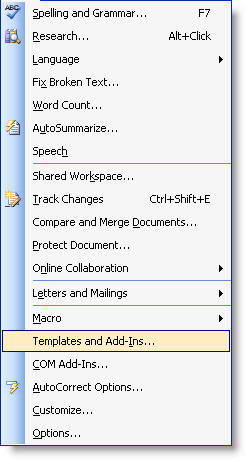
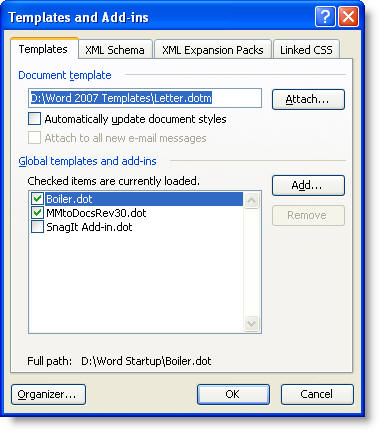
and attach the normal template
OR
Save the document as a template. Close the template then re-open the document, click through the converter dialog and attach the new template you have just created.
If you are using Word 2007/2010 to create documents that will be opened by users who are using Word 2000-2003 and who have the 2007 compatibility pack, or are creating Word 97-2003 format documents for use by users with Word 97-2003, then it will save a lot of confusion for the recipients if you base the document either on the default normal template or on a compatibility format DOT template.
Problems opening new documents in old Word versions
Opening the current XML docx format documents in old Word versions is not always plain sailing, because the converter that makes this happen has no compatibility with the new Word template formats. This page explains how to overcome that issue.